Set up a classroom
The normal setup has four steps and only needs to be completed once per class.
1. Sign in
Select Continue with GitHub. Use the GitHub account that can install apps in your course organization.
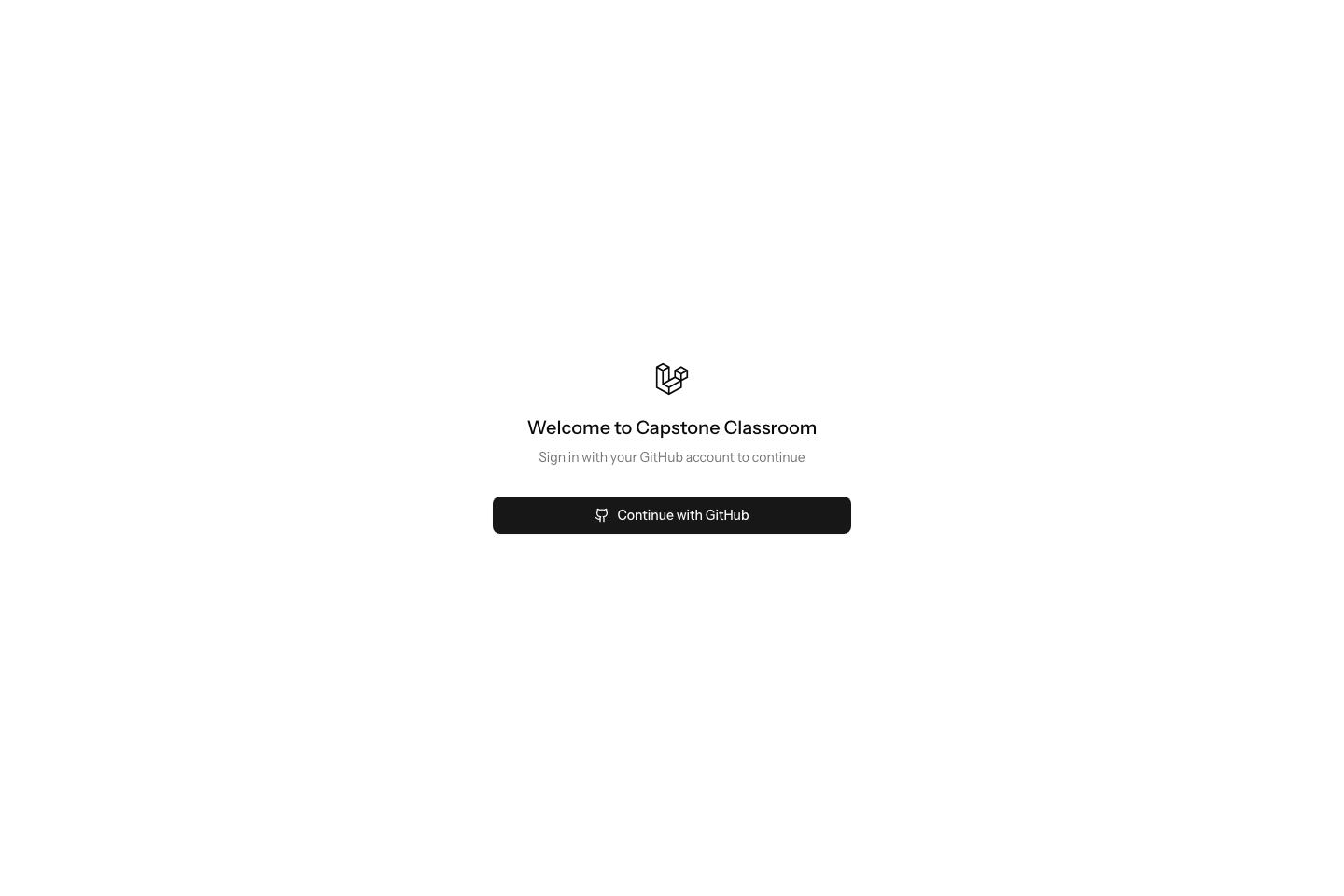
Your GitHub account must provide an email address. If sign-in reports that no email is available, add or expose an email in your GitHub account settings and try again.
2. Create the class and install the GitHub App
From Classrooms, select Create Class.
- Select Choose organization.
- On GitHub, choose the organization that will own the student teams and repositories.
- Approve the Capstone Classroom GitHub App installation. An organization owner may need to approve the request.
- Return to Capstone Classroom, enter a recognizable classroom name, select the organization, and choose Create Class.
You install the app once per organization. Future classrooms can select an existing installation.
Install the GitHub App with the account you used to sign in to Capstone Classroom. The organization must appear in the list of installations available to that account.
3. Import teams from Canvas
Open Student Roster for the classroom. Under Import Canvas roster:
- Choose the Canvas group export CSV.
- Select Private or Public for all team repositories.
- Select Import roster.
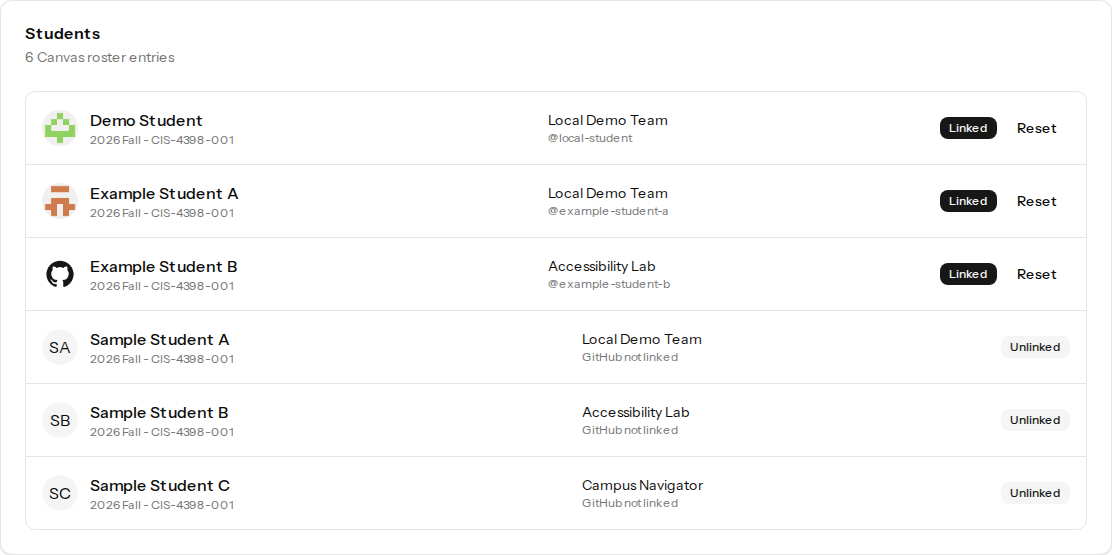
Capstone Classroom expects the standard group export columns in this exact order:
name,canvas_user_id,user_id,login_id,sections,group_name,canvas_group_id,group_id
Each student must appear once and have a name, Canvas IDs, login ID, section, and group name. Importing the file creates the team list, but GitHub resources are not provisioned until students begin joining.
Prefer manual teams?
Select Skip for now instead of importing a CSV. Open Teams to create team names yourself. You can also enable student creation so students may join an existing manual team or create their own from the join page.
4. Share one link
On Student Roster, select Copy beside Classroom join link and send that permanent link to the class. Students use it to connect their GitHub identity to the correct roster entry and team.
That is the end of required teacher setup.
Monitor onboarding
The classroom dashboard shows linked students and team counts at a glance. Use:
- Student Roster to see who has linked GitHub, reset an incorrect claim, or manually match an unlinked student.
- Teams to watch provisioning, open GitHub teams and repositories, visit project sites, or retry a failed team.
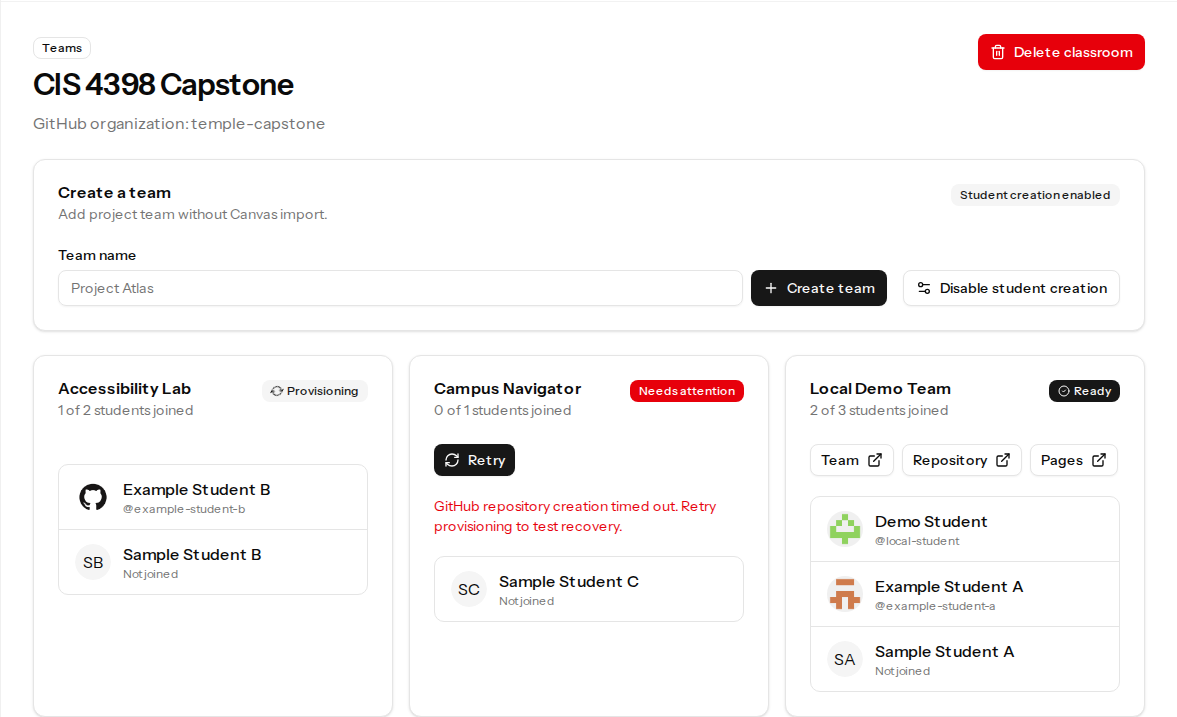
Team statuses mean:
| Status | Meaning |
|---|---|
| Waiting | No student has triggered setup yet. |
| Provisioning | GitHub resources are being prepared. The page refreshes automatically. |
| Ready | The team, repository, and access are available. |
| Needs attention | GitHub setup failed. Read the message and select Retry after correcting the cause. |
| Missing on GitHub | A repository or team was deleted on GitHub and requires an explicit repair. |
Teachers can open the classroom join link to test student-created team provisioning without changing their teacher account into a student account.
Resolve changes made on GitHub
Capstone Classroom detects when someone changes a team membership directly on GitHub. Open Teams and review each GitHub membership changed notice before choosing an action:
- Select Resync GitHub to restore the classroom roster as the source of truth. This reverses the direct GitHub membership change.
- Select Accept to update the classroom to match GitHub. Accepting a removal unlinks the student's roster claim and moves their account to Students waiting for a roster match on the Student Roster page.
Use Accept only when the GitHub change was intentional. The app verifies the current GitHub membership again before applying either action.
Repair GitHub resources
Capstone Classroom does not automatically recreate deleted GitHub resources. On Teams, use the action shown for the affected team:
- Recreate repository after a repository is deleted.
- Recreate team after a GitHub team is deleted.
- Restore access after a team loses access to its repository.
If GitHub App is not active appears, restore the installation in the GitHub organization first. Unsuspend a suspended installation or reinstall the app if it was removed, then retry the action.
Delete a classroom
Open the classroom dashboard, Student Roster, or Teams, then:
- Select Delete.
- Enter the classroom name exactly as shown.
- Select Delete classroom.
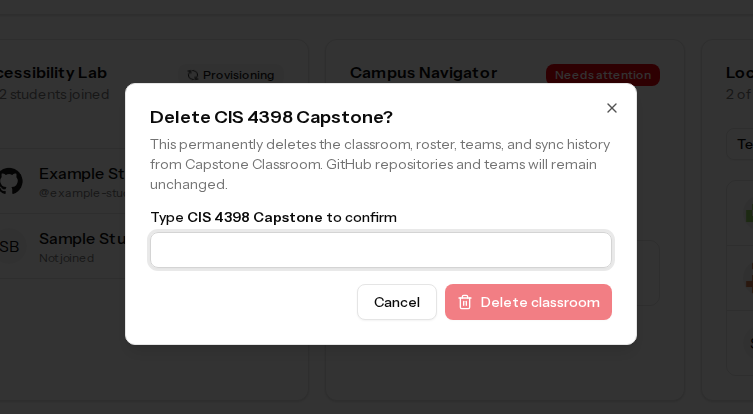
Deletion removes the classroom, roster, team records, and synchronization history from Capstone Classroom. It does not delete GitHub repositories or GitHub teams. Manage those resources separately in the GitHub organization if they are no longer needed.