Join your project team
You do not need to create a GitHub organization, team, or repository. Keep the classroom join link from your instructor and complete these steps once.
1. Open the join link and sign in
Open the permanent classroom link from your instructor. If prompted, select Continue with GitHub and authorize Capstone Classroom.
Use the GitHub account you want associated with your course work. It must have an email address.
2. Find your name
Select your name exactly as it appears in the Canvas roster.
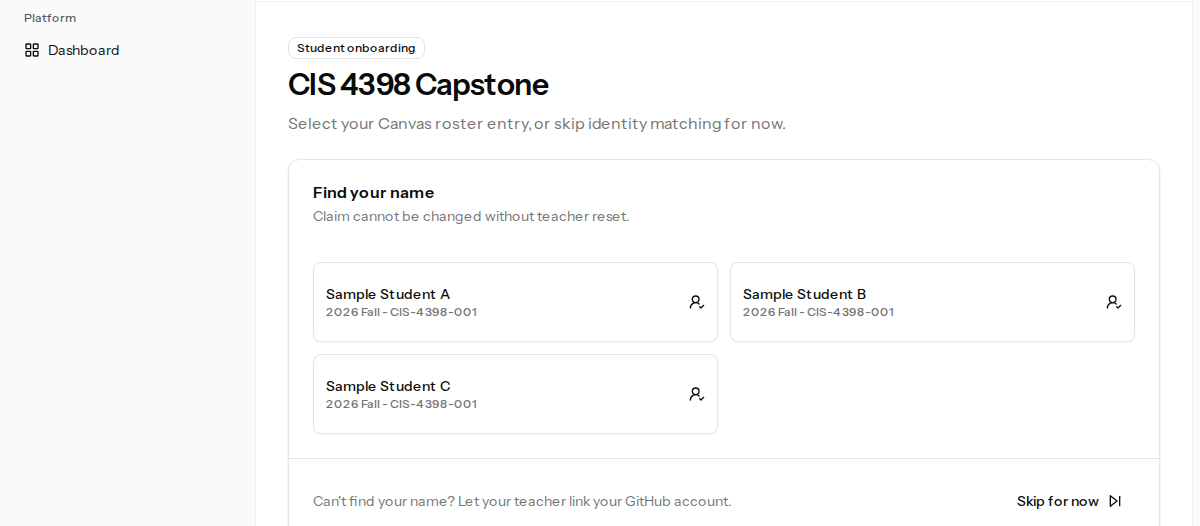
A roster claim cannot be changed by a student. If you choose the wrong name, ask your instructor to reset it from Student Roster.
If your name is missing, select Skip for now. Your instructor can later match your GitHub account to the correct Canvas name.
If your class uses manually managed teams, you may instead be asked to select an existing team or create a new one.
3. Open your workspace
After you claim your name, Capstone Classroom prepares your GitHub access. The status page refreshes automatically, so you can leave it open while the team is provisioning.
GitHub may send an organization invitation. Accept it to activate your team membership.
When the status is Ready, use:
- Repository to open the team’s source code and project workspace.
- Project site to open the team’s generated documentation site when it becomes available.
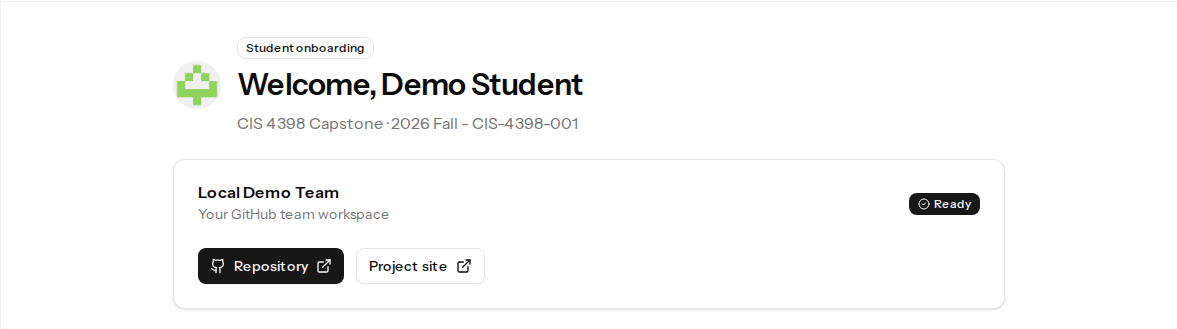
You can return to Capstone Classroom later and select Open classroom to find these links again.
Keep access to your workspace
Use the team assignment shown in Capstone Classroom. If someone adds or removes your account directly on GitHub, Capstone Classroom alerts your instructor so they can review the change.
Your instructor can:
- Restore the classroom assignment to GitHub.
- Accept the GitHub change and update the classroom assignment.
If your instructor accepts your removal from a GitHub team, your account returns to the classroom's pending-student list. Ask your instructor to match your GitHub account to the correct Canvas roster entry before you continue.
Troubleshoot access
- GitHub says you do not have access: Accept any pending organization invitation, then reopen the repository from Capstone Classroom. If access is still unavailable, contact your instructor.
- Your repository, team, or project site is unavailable: Contact your instructor. They can review the team status and repair deleted GitHub resources or repository access.
- The classroom no longer appears: Your instructor may have deleted its Capstone Classroom data. Classroom deletion does not delete the GitHub repository or team, so ask your instructor where to access or archive your project work.
see more in Common questions.